My Current 'AI Stack' for 'Productivity'
Both title words get scare quotes. The stack isn't all AI, and I'm not sure all of it makes me faster. Some of it is genuine leverage. Some of it is the pleasure of customising the tools you touch everyday, which feels like productivity. It's kind of therapeutic.
Here's what I actually use.
The everyday layer
Generally, a lot of my day is talking to models (non-human ones), so the friction I most care about is the friction between a thought and the model seeing it.
Wispr Flow: dictation that drops transcribed speech into any text field. I dictate almost everything; the text you're reading is close to first-pass spoken output, lightly cleaned. It's already very convenient out of the box. But if you want to go full try-hard productivity larp, you can bind it to your mouse: hover over a field, click in, mouse button one to start talking, mouse button one again to stop and paste, mouse button two to hit enter. This one's purely for the sake of optimisation rather than actually saving much time, but it feels genuinely nice to drive.
ShareX: an open-source screenshot and capture tool. A model can usually do more with a picture of the thing than with my description of it, so I throw images at it constantly. I bind screenshots to ctrl+A. You could use the Windows built-in (win+shift+S), but ShareX just works nicer: it intelligently handles whether you're grabbing a UI component, drawing a custom rectangle, or capturing the whole screen, where the Windows tool makes you toggle between modes. For front-end or design work, isolating a single component is effortless. It also does screen recordings and whatever other custom shortcuts you care to configure.
Raycast: a desktop app for binding custom shortcuts to any application. I use it to open the two models I reach for reflexively: ctrl+alt+A for a Claude tab, ctrl+alt+G for a ChatGPT tab.
Claude and ChatGPT, the actual conversations. I mostly talk to Claude Opus 4.8 these days, but it can occasionally be too contrarian, so when I want a less combative read I'll go to ChatGPT. On anything important enough to matter, I ask both to gather a variety of opinions. I'll also use the desktop apps when I want them to actually do things rather than just talk: Codex's @computer function for driving the machine, Cowork through the Claude Code desktop app, and the Claude Chrome extension when I want it controlling the browser. I don't lean on these constantly, but they are fun for experimentation (more recently I've been using kernel.sh for some cool things, which is fantastic).
Gemini, for images and the rest of the multimodal grab-bag. I keep a Google subscription mostly for this: image generation alongside GPT Image 2, plus the occasional music clip, video, or quick edit to an existing image. I find Gemini is generally strong with images.
The code layer
This one's messier, and on purpose. Different jobs want different tools and I've given up pretending one setup wins.
WSL plus tmux: tmux is a terminal multiplexer - it holds several terminals in one view, so you can spin up a lot of tools at once (see below).
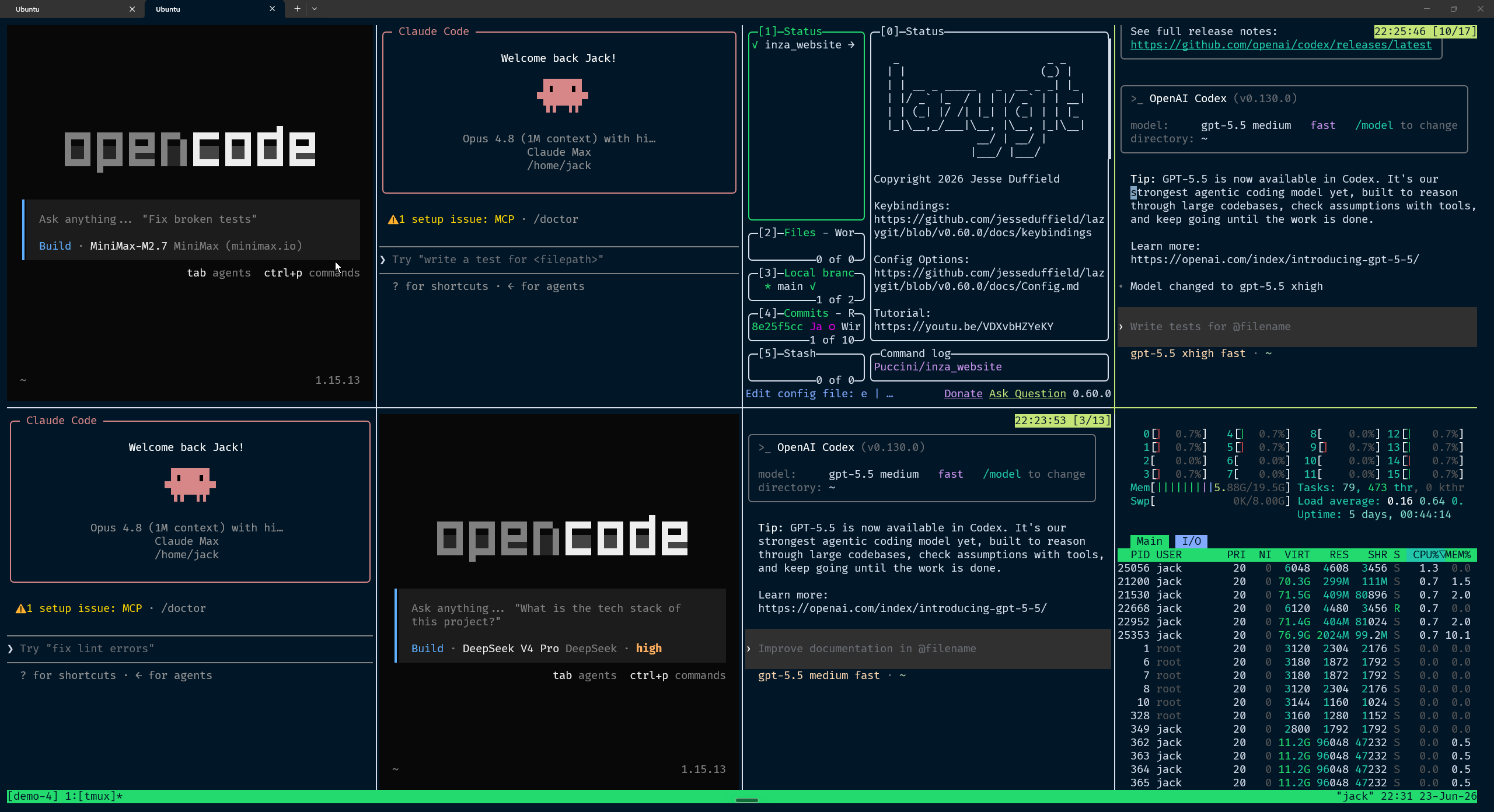
This is my setup when I want a swarm of agents and processes running together. A typical session has lazygit open, a CLI coding agent or two (Claude Code, Codex), and htop in the corner - though htop is honestly just for the aura, unless you're doing something resource-intensive and actually need to watch memory etc.
VS Code and Cursor, when I need to look - read across files, inspect contents, do heavier editing. I don't use Cursor much anymore, but I still reach for its Composer 2.5 on simpler tasks where I want the speed. That's more or less the only reason it's still in the rotation.
Claude Code and Codex, both, in every form they ship: desktop apps, CLI tools, editor extensions. I typically don't commit to one agent. My tastes change week-to-week. Lately I've been running agent swarms a lot more often - the dynamic, multi-agent workflows (Ultra Code, or whatever it's called) on Claude Code. Recently that's been working surprisingly well: hand off a chunky task, let several agents chew on it in parallel, come back to something mostly done.
Open Code with MiniMax, for personal projects that burn a lot of tokens. When I need a relatively smart model and a lot of usage, MiniMax M3 is my usual go-to - the subscription gives you effectively unlimited usage, and if you'd rather not commit, it's very cheap through Openrouter.
The writing layer
Notion, with the Notion MCP connector. This is where drafts live, along with my references and style guides. I've tried many approaches, and this is a more recent one, subject to change in the coming weeks. If I want a model to draft something, it writes the output straight to Notion via the MCP, so I can see it laid out properly and edit it easily instead of copying text back and forth. This post went through it.
How I wrote this post using the tools
Here's how the pieces actually fit together, using this post as the example. End to end it took about twenty minutes.
- Ramble. I open the Claude app and use Wispr Flow to talk into it for five or ten minutes - literally what I'm doing right now - describing what the post is about and what should be in it.
- Reference the guides. I tell Claude to pull my style and writing guides from Notion via the MCP. They cover how I like to write and how to avoid AI slop (hopefully it's working here). I ask it to absorb those, then draft the piece from everything I dictated.
- Write back. Once it's drafted, I have it write the result back to Notion via the MCP.
- Edit. I open Notion myself and fix the spots where I don't like the phrasing. (I'll also drop in a screenshot here - a tmux session with a few terminals going, grabbed with ShareX - so the post has the image embedded.)
- Ship. I open my terminal, launch Claude Code inside the project for my personal site, and tell it (using Wispr Flow, of course) to read the finished writing from Notion via the MCP, turn it into a blog post on the site, then stage, commit, and push. It deploys.
So does any of it work
Probably. The dictation and the screenshot shortcut are real - they remove steps I'd otherwise take thousands of times. Knowing which tool fits which job is also important, and I like to tell myself that the other shortcuts accumulate over time or something like that...
In any case, the way it all snaps together feels snug, and that snugness genuinely makes me more motivated to get things done. Half of this stack is sharpened edges. The other half is just a nice place to sit while I do things, and I've decided that counts for something too.